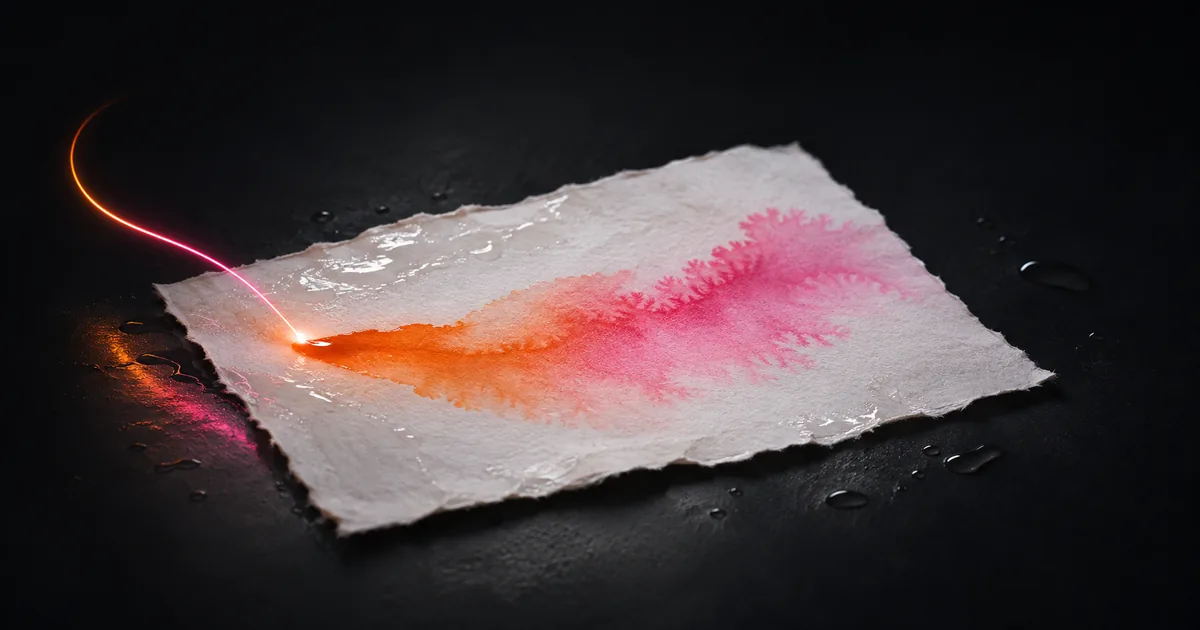
A watercolour brush that's really a soft edge gives you one thing right and loses the other two. AtomCut simulates the physics instead: a wash bleeds while it's wet, two strokes run into each other where they meet, and it dries with a dark rim at the edge, because all three are consequences of the same pigment suspended in moving, evaporating water. AtomCut is a free motion design and video editor that runs in the browser, no account, no install.
1. Pick a wet brush
Open the brush picker and choose from the Watercolor group: Watercolor Wash, Watercolor Edge, Dry Watercolor or Ink Bleed. Any raster brush can also go wet: open Brush Studio and switch on "Paints wet" under the Wet media tab to turn it into live water carrying pigment instead of ordinary pixels.
Wet paint lives on its own film over the canvas, separate from the layer's committed pixels. That's what makes drying meaningful rather than instant: the wash keeps moving on that film while you work, and only becomes part of the bitmap (visible to the eraser, to merge-down, to the color wand) once it dries.
2. Paint, and let it keep moving
Lay down a stroke and it doesn't stop when you lift the pen — the wash keeps flowing and spreading on its own. Paint a second stroke close to the first while both are still wet and they run together, the same way real washes do on paper.
3. Tune how it behaves
Brush Studio's Wet media tab exposes the numbers the simulation actually runs on: Water controls how loaded the brush is, Spread controls how freely the water runs, Drying controls how fast it evaporates, and Settling controls how readily pigment drops out of suspension. Low Settling gives you a staining pigment that keeps traveling with the water; high Settling drops color where it lands and barely migrates.
The wash also granulates into the same generated paper-grain field the dry brushes gate through, so a rougher paper texture produces more visible granulation than a smooth one, and a wash pools in the paper's own valleys the way a dry brush would skip over its peaks.
4. Dry it
Paint dries three ways: on its own as the water evaporates, on demand with the Dry button in the options bar, or under the drying fan tool, which evaporates hard wherever you drag it. Drying is one undoable step, so pressing ⌘Z after drying puts the wash back exactly as wet as it was.
5. See the result
Once it's dry, look at the edge: the coffee-ring effect that gives watercolour its signature rim is a real outcome of the simulation, not a drawn-on stroke.
Questions people ask
Does the wet simulation respond to pen pressure? Wet brushes share the same pressure, tilt and velocity response curves as every other brush preset, read from your stylus hardware when it's available.
Can I dry only part of a wash? The drying fan targets whatever area you drag it over; the Dry button dries the whole layer's wet film in one step.
Is a wet layer free to use, or does it need the paid tier? Every drawing tool, including wet brushes, is free with no watermark; Pro is about export resolution, not which tools you can paint with.
The full brush and preset system, wet media included, lives under /docs/drawing.